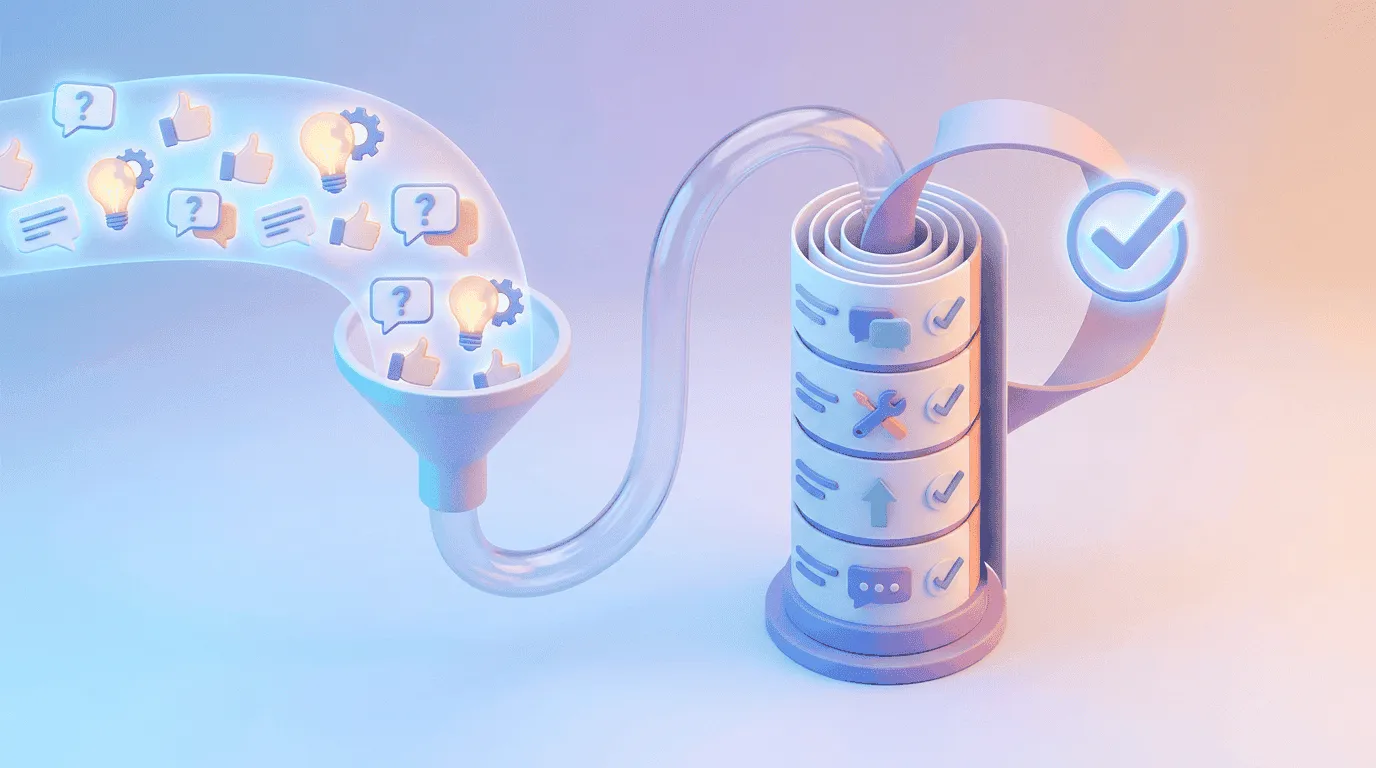
A customer hits an error while exporting a report, then opens a support ticket hours later with the words “export is broken.” Your team has no page URL, no screenshot, no plan details, and no clear way to reproduce the issue.
An in-app feedback widget captures the report while the customer is still in the relevant part of your product. Upvoty gives SaaS teams a route from that moment of feedback to a central board, where requests, bugs, votes, and product decisions stay connected.
Quick answer: how to use an in-app feedback widget
Set up the workflow in this order:
- Place the widget on authenticated product screens where users complete meaningful tasks.
- Use a short form that separates bugs, ideas, and general feedback.
- Collect a screenshot, page URL, user identity, and product context with each submission.
- Route every item to one central feedback board with a clear status and owner.
- Merge related requests, review demand by customer segment, and prioritize with qualitative evidence.
- Share progress through your roadmap and changelog, then notify people who asked for the improvement.
Where to place an in-app feedback widget
Place the widget close to moments where users can describe a specific outcome. A persistent feedback button works well in an authenticated app shell because it remains available without interrupting work. A contextual link beside a complex feature works well when you need feedback about one workflow.
Avoid placing the widget only on a marketing site or help center. Those locations miss the product state that turns a vague report into an actionable one.
Use placement based on the screen’s job:
| Product area | Best widget placement | Context worth capturing | Primary submission type |
|---|---|---|---|
| Dashboard | Persistent side tab or help menu | Account role, selected date range, active filters | Ideas and general feedback |
| Report builder | Link beside preview or export controls | Report type, filters, export format, page URL | Bugs and workflow friction |
| Billing settings | Help menu entry | Plan, permission level, billing state | Bugs and account questions |
| Onboarding | End-of-step prompt after completion | Completed step, skipped step, time in flow | Onboarding feedback |
| Admin settings | Persistent tab with internal-only routing | Role, workspace settings, feature flags | Requests from power users |
For example, consider a B2B SaaS product where account managers build monthly usage reports at /reports/builder. The team initially places a feedback button only in the global navigation. Customers submit “PDF export needs work,” which leaves product and engineering teams guessing.
The team then adds a small “Report an issue” link beside the PDF export action and keeps the global widget for broader ideas. The export link opens the bug form and carries the report URL, selected filters, and export type. The global widget opens a general form. Two entry points create cleaner reports without adding friction.
For implementation details that protect the experience, read How to Set Up an In-App Feedback Widget Without Disrupting Users.
Build an in-app feedback widget form users will complete
A good submission form gives users enough structure to provide useful evidence, while keeping the initial action fast. Start with one required description field and route users into a more specific form after they select the type of feedback.
For the report-builder example, use three categories: “Report a bug,” “Suggest an improvement,” and “Share feedback.” Each category needs different questions.
Capture bug reports with enough context to reproduce them
Ask for a brief description, expected result, actual result, and optional reproduction steps. Capture product context automatically where your implementation allows it: page URL, browser, app version, account ID, user role, selected settings, and time of submission.
A screenshot often provides the missing detail. Let customers annotate it when the interface supports that workflow, especially for visual defects, clipped fields, confusing labels, and error states. For an export problem, the image can show that the PDF stops after the first page or uses the wrong date range.
Keep sensitive information out of screenshots and free-text reports. Tell users to remove passwords, tokens, payment details, and personal data before submitting. Teams also need retention rules and access controls for any user context they collect. The EU General Data Protection Regulation provides the legal framework for personal-data processing, while the OWASP Logging Cheat Sheet explains why secrets and sensitive data need careful handling in records.
Use custom fields only when they change a decision
A field earns its place when it helps someone reproduce, route, or prioritize the submission. “What were you trying to achieve?” is useful for a confusing workflow. “Which subscription plan are you on?” can be collected automatically from account data. A long survey inside a feedback widget usually produces abandonment or thin answers.
For the B2B reporting example, “Export format” and “Report template” help engineering reproduce the issue. Asking for the customer’s company name adds little value when their identity already travels with the signed-in session.
Start with the Upvoty custom submit forms feature for category-specific questions. Review the first 20 to 30 submissions before adding more fields. Real reports reveal which context remains missing.
Route in-app feedback into one central board
Feedback fails when ideas sit in one inbox, support issues live in another, and feature requests are copied into a spreadsheet. Bring submissions into one central board, then use categories, statuses, tags, assignees, and internal notes to make the board usable by product, support, and engineering.
The reporting team can route each export submission to an “Exports” board category. A product manager sees three separate requests for PDF page breaks, merges them into one canonical post, and retains the original reporters as voters or linked customers. The resulting demand signal is clearer than three disconnected tickets.
Give every incoming item a first status within a defined review window. “Under review,” “Planned,” “In progress,” “Complete,” and “Closed” are usually enough. The status describes the current product decision, while internal notes can hold reproduction details, support history, or engineering links.
Votes are one input among several. A request from a strategic segment, a repeated workflow failure, or an issue blocking an important task may deserve attention before a broadly requested cosmetic change. Customer feedback prioritization by revenue, segment, and demand explains how to add that commercial and product context without treating raw vote totals as a backlog order.
How Upvoty turns widget submissions into a feedback workflow
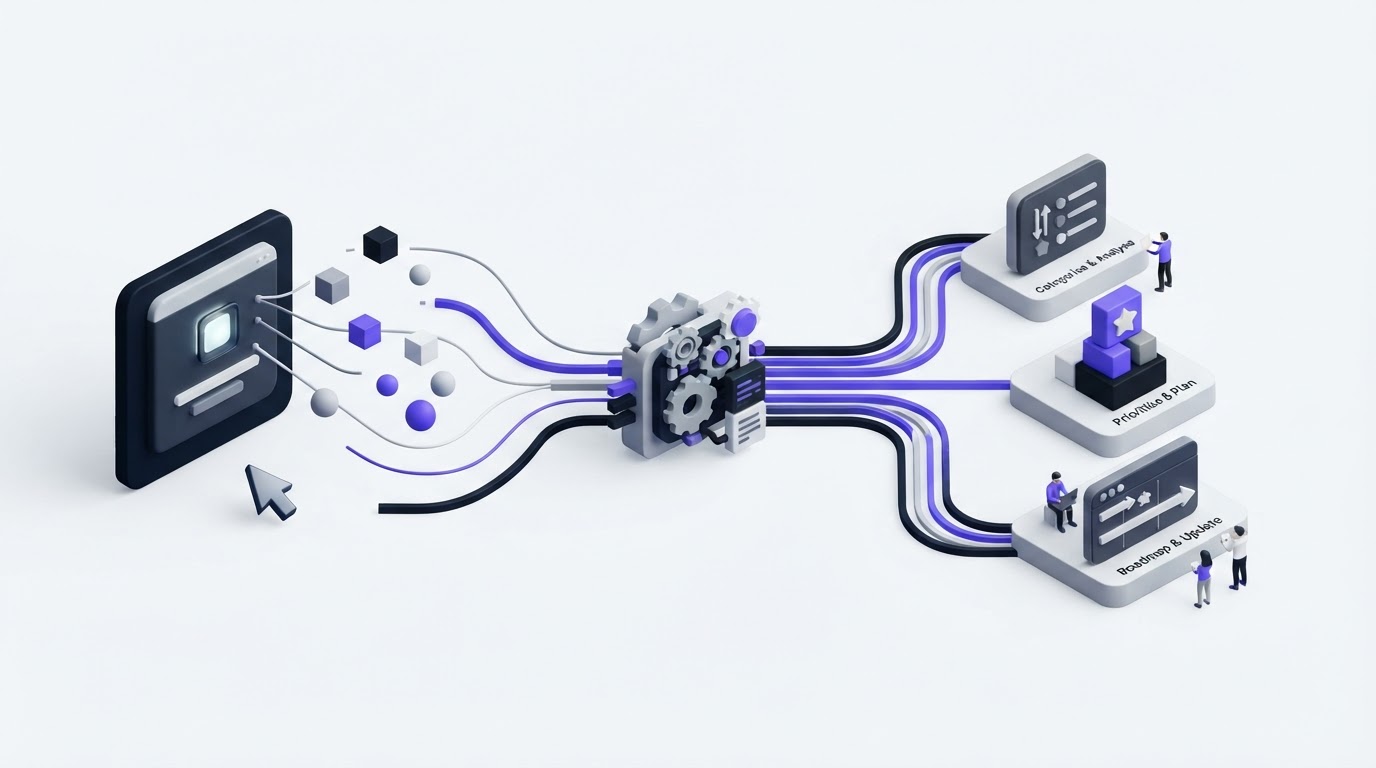
Upvoty is useful when the team needs one connected route from in-product feedback to a visible decision and follow-up. Here is how the workflow would look for the reporting team.
First, add the in-app feedback widget to the authenticated product and configure the entry points for general feedback and export-specific bug reports. The category selection directs each submission to the appropriate form.
Next, send the submission into Upvoty feedback boards. Product can group related reports, set statuses, apply smart tags, and add internal notes. Support gains a place to link a customer conversation to an existing request instead of creating another duplicate.
Then, assign an owner and priority for reports that need investigation. Connect the item to engineering through the team’s workflow, such as Jira, Linear, Slack, Microsoft Teams, Zapier, or webhooks, using Upvoty integrations. The feedback item remains the customer-facing record while delivery work continues in the development system.
Finally, publish suitable planned and completed items on a roadmap or changelog. Keep security issues, account-specific cases, and sensitive requests private. A public view should give customers confidence without exposing operational details. See how to build a public product roadmap customers trust for practical guidance on that boundary.
The dashboard below shows the central view your team needs after feedback starts arriving: items can be reviewed together rather than hunted across conversations.
!Upvoty dashboard for managing feedback submissions, status, and analytics
Close the loop after an in-app feedback widget submission
Feedback collection creates an expectation of response. Set a realistic confirmation message immediately after submission, such as: “Thanks. Our product team reviews new feedback weekly. You can follow the status here.” Link to the relevant board when a public board suits the request.
When the PDF export issue moves into development, update its status. When the fix ships, publish a changelog entry that explains what changed in plain language and notify the people who reported or voted for it. The original customer gets proof that their report reached the people responsible for the product.
A vague “we value your feedback” email carries little operational value. A status update tied to the exact report gives customers a useful answer. How to close the customer feedback loop with a changelog covers the communication sequence in more detail.
Common mistakes with an in-app feedback widget
The most common failure mode is collecting feedback without assigning anyone to review it. Set a board owner, a review cadence, and an escalation path for reports that block a core workflow.
Another frequent problem is treating every submission as a new feature request. Search for related posts before creating a new item. Merge duplicates, preserve the original context, and use the combined set of voters and reporters to understand demand.
Teams also over-collect context. Start with the minimum technical and account data required to reproduce issues and make a product decision. Audit custom fields quarterly. Remove fields that nobody uses during triage.
Finally, keep the widget discoverable without making it disruptive. A modal shown on every visit trains customers to dismiss it. A persistent tab plus contextual links at high-friction actions provides a calmer, more useful collection path.
FAQ about collecting feedback inside a SaaS product
Where should an in-app feedback widget go?
Use a persistent widget in the authenticated app shell, then add contextual entry points beside complex or high-value actions. Export, checkout, integrations, onboarding, and settings screens often benefit from targeted reporting links.
Should users be able to submit screenshots with feedback?
Yes, especially for bugs and interface friction. Screenshots reduce back-and-forth when paired with page URL, user role, browser data, and a short description of expected versus actual behavior. Add clear guidance about removing sensitive information.
How do you separate bug reports from feature requests?
Give users a category choice before they see detailed fields. Bug reports need reproduction evidence and technical context. Feature requests need the user’s goal, affected workflow, and the problem they want solved. Both can live on the same central board with separate categories and review rules.
Should all in-app feedback appear on a public board?
Publish product ideas and suitable planned work when transparency helps customers follow progress. Keep vulnerabilities, personal account cases, contract-specific requests, and internal operational reports in private views. Your moderation policy should define the boundary before submissions increase.
Collect feedback at the point of use, preserve the context, and give every report a clear route to a product decision. Try Upvoty to connect your in-app feedback widget, feedback board, roadmap, and changelog in one workflow. Read next: Jira Product Discovery Alternative.