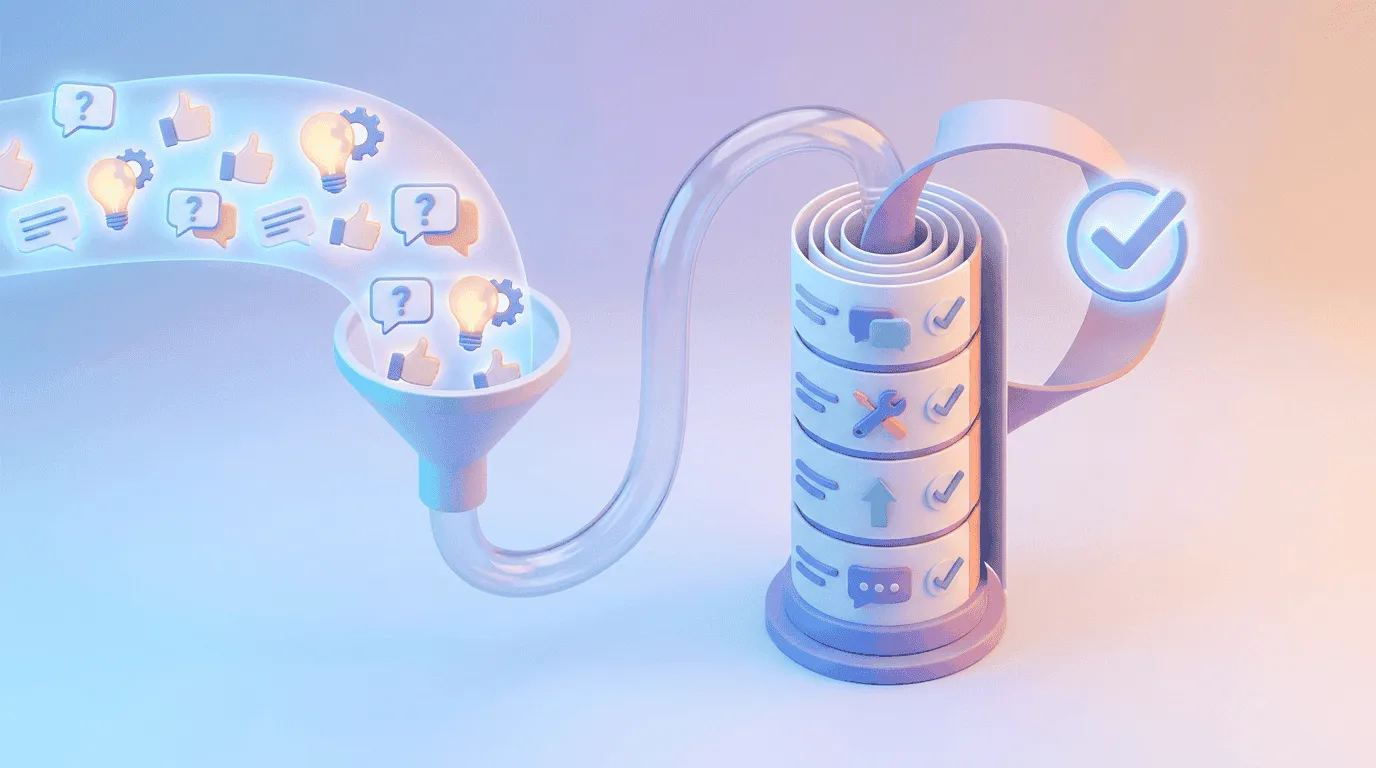
A customer hits an error while exporting a report, opens a support chat, and tries to explain a screen your team cannot see. Another customer has a feature idea during setup, then forgets it before reaching your public board. Both signals arrive late, stripped of the product context that makes them actionable.
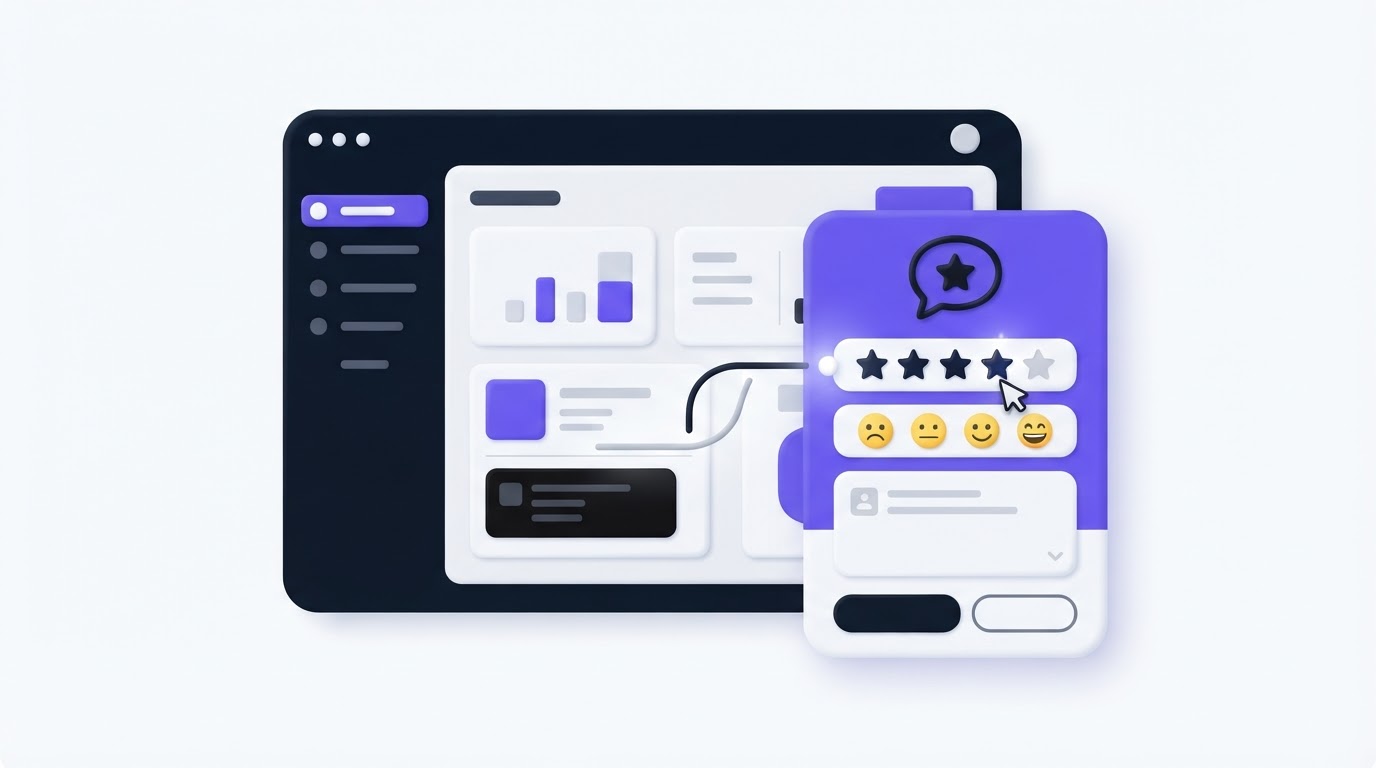
An in-app feedback widget gives customers a direct path to report the moment while it is fresh. Upvoty can collect that feedback inside your product and route it into a central board where product, support, and engineering can work from the same record.
Quick answer: how to set up an in-app feedback widget
Set up your in-app feedback widget in this order:
- Place the widget on screens where users complete work or encounter friction.
- Offer separate submission paths for feature requests, bugs, and general feedback.
- Capture the current page, account details, product area, and browser or device context.
- Allow screenshots for visual issues and add a focused reproduction field for bugs.
- Send every submission to one central feedback board with clear ownership and status.
- Merge duplicates, prioritize by customer segment and impact, then notify customers as work progresses.
Where to place an in-app feedback widget
Put the widget close to meaningful product activity. A persistent launcher in the lower corner works well for broad coverage, while page-level triggers work well at high-friction moments such as an error state, a completed workflow, or a canceled action.
Avoid placing it only in a help center or settings page. That location favors customers who already know where to look and misses people who encounter a problem during everyday use.
Consider a fictional SaaS product called LedgerLeaf, which helps finance teams produce monthly close reports. Its team adds a persistent feedback launcher across the app. They also show a small “Tell us what happened” prompt after a report export fails. The persistent launcher catches ideas from accountants working in reconciliation, while the failure prompt collects evidence around a specific defect.
Use the context of each page to decide the entry point:
- Place a persistent launcher across core authenticated screens for ideas and broad usability feedback.
- Add an inline prompt beside empty states when users lack a workflow or integration they expected.
- Trigger a compact feedback option after an error, failed import, or blocked export.
- Add a feedback link in beta features where discovery and product learning are the goal.
- Keep the launcher away from payment confirmation screens and highly sensitive workflows unless your privacy review approves the data flow.
One visible entry point per screen is usually enough. Multiple overlapping prompts compete with the work the customer came to do.
Choose the right moment without interrupting work
Timing affects the quality of a response. Ask immediately after an event when you need diagnostic detail. Ask after a completed task when you want an opinion on the full flow. For example, LedgerLeaf asks “What made this export fail?” right after an export error, then captures the report type and error state automatically.
A request after every successful action creates fatigue. Reserve proactive prompts for a small set of milestones: a user’s first completed project, a newly released workflow, or a repeated failed action.
Build submission forms for the feedback you need
A single open text field produces vague entries such as “reporting needs work.” Make the form adapt to the type of feedback. Customers should be able to submit quickly, while your team receives enough information to triage without a long back-and-forth.
Start with three choices: feature request, bug report, and general feedback. Each choice can open a tailored form using custom submit forms.
| Submission type | Required fields | Helpful optional fields | Routing destination |
|---|---|---|---|
| Feature request | What are you trying to achieve? | Current workaround, expected frequency, relevant workflow | Ideas board |
| Bug report | What happened? What did you expect? | Steps to reproduce, screenshot, error message | Bugs board or engineering triage |
| General feedback | What would you improve? | Product area, rating, contact permission | Product discovery board |
| Account or billing issue | What do you need help with? | Invoice or workspace reference | Support queue |
For LedgerLeaf, the feature request form asks, “What reporting decision would this help you make?” That wording draws out the job behind a request such as “add custom columns.” A customer might explain that regional controllers need to compare actuals against local budget codes before close. The team now has a use case, an affected group, and a possible scope boundary.
Keep required fields short. Two focused questions often produce better evidence than seven mandatory fields. Add conditional fields only after a customer selects a category.
Make forms accessible and privacy-aware
Use visible labels, keyboard access, clear error messages, and a logical focus order. The W3C guidance on accessible forms offers practical requirements that also improve completion for every customer.
State what data the widget collects and why. Screenshots can contain names, financial figures, or client data. Data minimization and purpose limitation sit at the center of GDPR Article 5, so limit automatic context to fields your team can use and protect.
Capture screenshots and context for useful bug reports
A screenshot speeds up diagnosis when the problem is visual: a clipped table, a missing button, an incorrect total, or an error toast that disappears after a few seconds. It becomes much more useful when paired with the page URL, the user’s product area, and a short account identifier.
For bug reports, capture structured context where appropriate:
- Current page or route
- Product area and feature flag state
- Browser, operating system, and app version
- Workspace or account ID
- Error code and timestamp
- Customer-entered reproduction steps
Keep a boundary around sensitive data. Do not automatically include free-form form values, authentication tokens, payment information, or data from private records. Give customers a preview before they attach a screenshot, and provide a way to remove it.
LedgerLeaf initially sent export failures into the same form as feature ideas. Submissions included screenshots, but the product team spent time asking which report had failed and whether the issue affected all users. The team changed the failure prompt to prefill “Reports > Export,” attach the timestamp, and ask for the file format plus expected result. Engineering could now group failures by export type without contacting every reporter.
This level of context also helps support identify urgent patterns. A cluster of failed CSV exports after a release calls for a fast operational response, while a request for quarterly templates belongs in product discovery.
Route in-app feedback to one central board
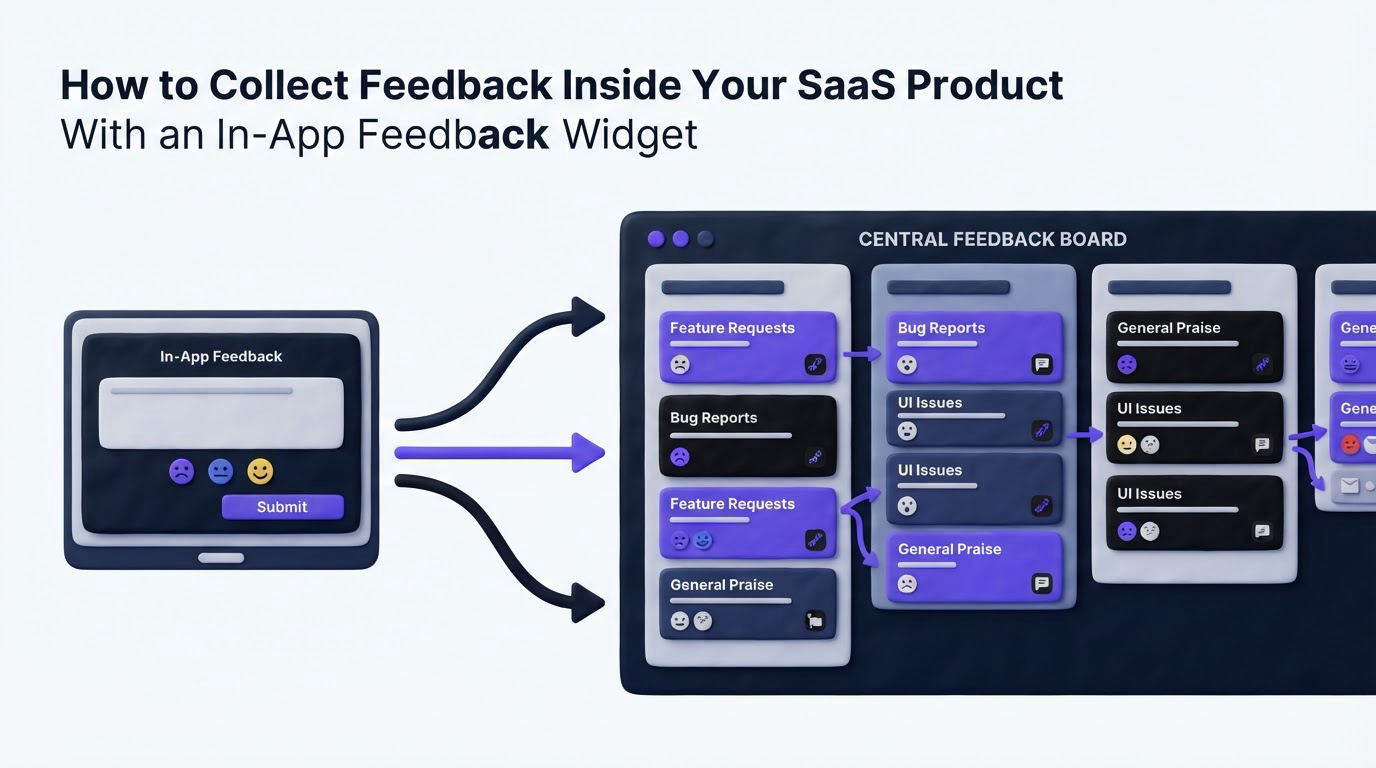
Feedback loses value when it stays scattered across chat transcripts, inboxes, spreadsheets, and issue trackers. Route submissions to a central board, then give each item a category, owner, internal note, and status.
Use separate views or boards when different teams need different operating rhythms. Bugs often need immediate triage. Feature requests need duplicate management, customer demand, discovery, and prioritization. A central system can still link both to the same customer and product area.
Start with a simple routing rule set. Export failures from LedgerLeaf go to the Bugs board, tagged “reporting” and assigned to the support lead for initial verification. Requests for new report layouts go to the Ideas board, where similar requests are merged under one customer-facing post. The support lead adds internal detail, and the product manager reviews demand during planning.
Review new feedback on a set cadence. Daily bug triage prevents critical issues from sitting idle. Weekly feature review gives the team enough volume to spot recurring needs. For a deeper operating model, see this guide to collecting, organizing, and prioritizing feature requests.
Merge duplicates before counting demand
Ten posts describing the same underlying request should become one canonical item. Preserve each voter and commenter on that item, then add the individual wording as internal context where useful. This prevents your board from splitting demand across slightly different titles.
Votes show interest, while account value, affected segment, strategic fit, and implementation effort shape the delivery decision. Use the framework in how to prioritize customer feedback by revenue, segment, and demand to make those trade-offs explicit.
How Upvoty turns widget submissions into a feedback workflow
An in-app widget has value when the submission continues through a visible process. With Upvoty, the workflow begins when you configure the feedback widget and choose the entry points that fit your product.
First, create tailored forms for bugs and ideas. Next, send the resulting posts to the relevant feedback boards, where your team can tag, merge, moderate, assign, and prioritize them. Internal notes keep investigation details private while the customer-facing post remains clear.
Here is what LedgerLeaf’s flow looks like in practice. A controller submits an export bug from the report screen and adds a screenshot. The item reaches the Bugs board with its context. Support verifies it, engineering receives the technical details through the team’s workflow, and the product team can identify whether a related feature request already exists. When the fix ships, the team can publish it through the changelog and notify the people who reported or voted for the issue.
The same central record can support transparent product communication. Once a request is sufficiently understood, move it to a planned status on a roadmap. Read how to build a public product roadmap customers can trust for practical guidance on showing intent without making careless delivery promises.
The product team should still define ownership, service levels, and prioritization rules. Software keeps the evidence together and makes the process easier to operate.
Common in-app feedback widget mistakes
The most common failure is collecting more feedback than the team can acknowledge. Customers quickly lose confidence when posts remain unanswered for months. Set a review cadence before turning on the widget, and use clear statuses such as under review, planned, in progress, and complete.
Another issue is treating every submission as a separate roadmap item. Group requests by the customer problem and workflow. “Support multiple entities,” “consolidated reporting,” and “multi-company close” may point to the same underlying need.
Teams also lose detail by using a generic feedback form for defects. Bug reports need expected behavior, actual behavior, reproduction steps, and technical context. Feature ideas need the desired outcome and current workaround.
Finally, close the loop. A resolved issue, shipped request, or declined idea deserves a visible update with a plain reason. This guide on how to close the customer feedback loop with a changelog explains how to turn release communication into a useful follow-up for contributors.
FAQ about in-app feedback widgets
What should an in-app feedback widget collect?
Collect the customer’s description, feedback type, current page or product area, account identifier, and contact details when needed. For bugs, add expected behavior, actual behavior, reproduction steps, timestamp, and an optional screenshot. Keep sensitive fields out of automatic capture.
Should feature requests and bug reports use the same form?
Use separate paths with different questions. Feature requests need the customer’s goal and workflow. Bug reports need evidence that helps a team reproduce and verify the issue. Both can still feed into the same central feedback system.
Where should I put a feedback button in my SaaS app?
Place a persistent launcher in the authenticated product experience, then add contextual prompts at error states and key workflow milestones. Start on your most-used screens and the areas where support receives repeated questions.
How quickly should a team respond to widget feedback?
Acknowledge urgent bugs quickly and review feature submissions on a published cadence. Even when a request will stay under review, a status update shows customers their input reached a real process.
A well-placed widget turns product moments into structured evidence your team can act on. Try Upvoty for in-app feedback collection to capture requests and bug reports, route them to a central board, and keep customers informed as work moves forward.